Tools to test digital accessibility
Digital accessibility tools are essential to test that your online publication is inclusive, empowering all users, including those with disabilities, to engage with content seamlessly. These tools support compliance with accessibility standards (such as WCAG), ensuring that content is navigable and readable for audiences using screen readers, keyboard navigation, and voice control.
WPMagazines has been tested for technical accessibility (WCAG 2.2.), which means our platform, without content, is digitally accessible (see full report in Dutch).
For a publications to be fully compliant, both technical functionalities and content have to be tested and deemed compliant. WPmagazines has taken care of the technical compliance, the client is responsible for content.
Tools
There are a few tools that the WPMagazines team uses to test overal accessibility compliance.
- Firefox - Inspect Accessibilty Properties option
- Google Lighthouse
- WAVE - Web accessibility evaluation tool
Firefox - Inspect Accessibilty Properties option
Mozilla Firefox, or simply Firefox, is a free and open source web browser.* Firefox The Accessibility Inspector provides a means to access important information exposed to assistive technologies on the current page via the accessibility tree, allowing you to check what’s missing or otherwise needs attention.**
To be able to use this tool you would need to download Firefox first, if you have not already done so.
Click on the image to enlarge
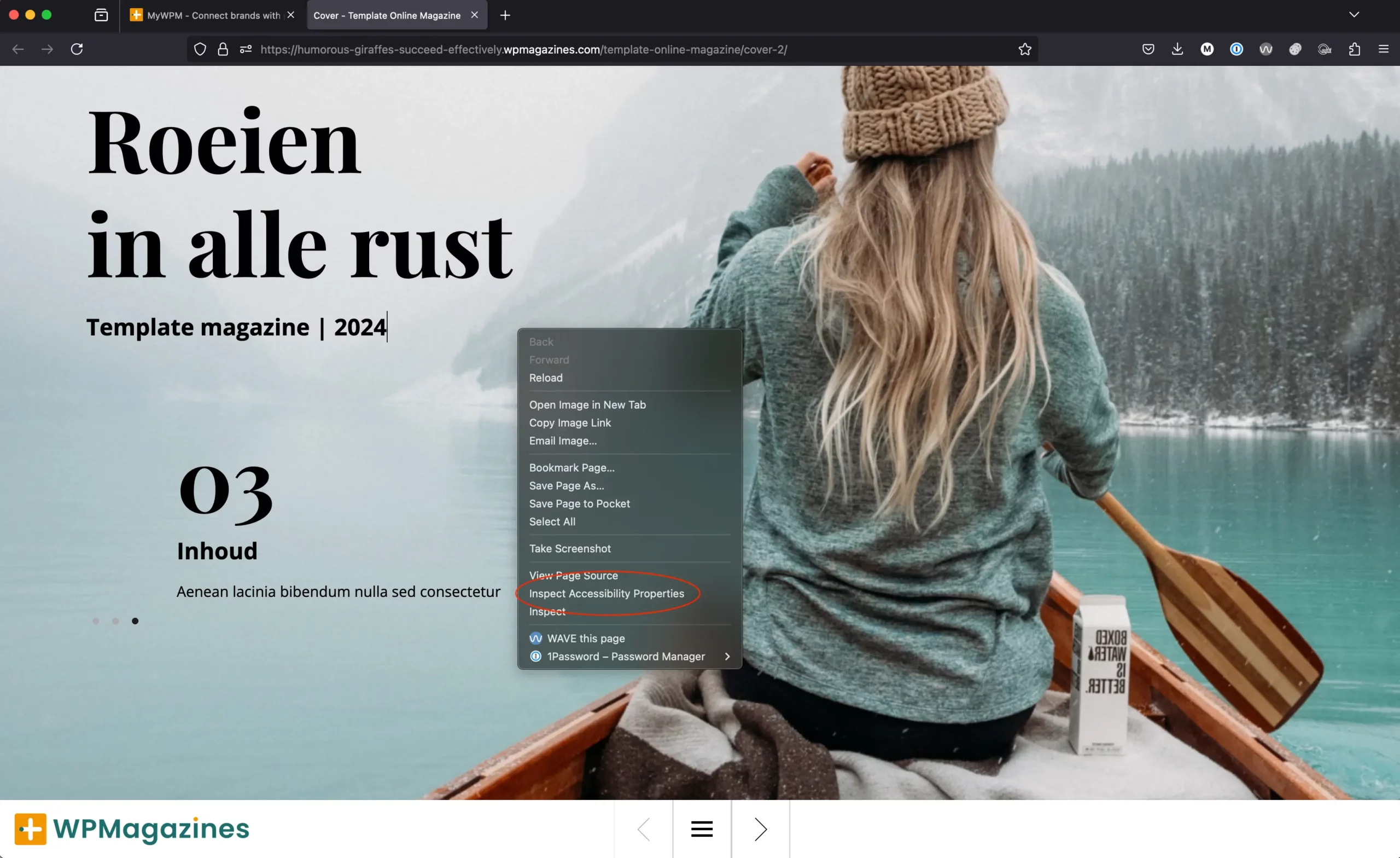
View your magazine via Firefox and right-click anywhere on the page you would like to test.
Choose the option "Inspect Accessibility Properties".
Click on the image to enlarge
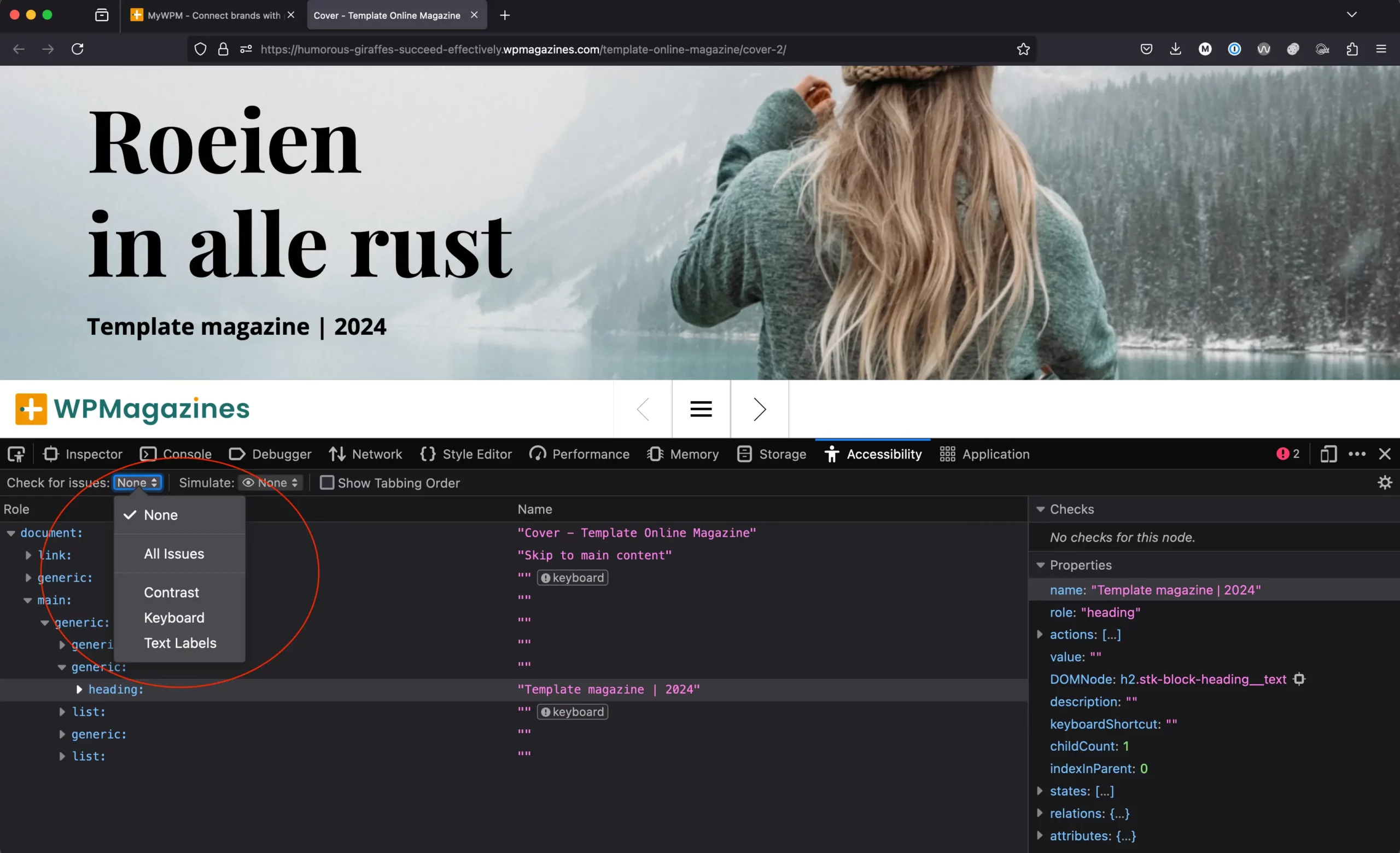
After clicking on "Inspect Accessibility Properties" the inspector bar opens. In the upper-left corner of the inspector you will see the option "Check for issues", choose which type of issue you would like to check for.
Types of issues Firefox checks for
- None: Don't check for any issues
- All issues: This will generate a list of all possible issues
- Contrast: This will generate a list of all contrast issues. The color contrast between background and content should be great enough to ensure legibility.
- Keyboard: This will generate a list of all possible issues with navigating with a keyboard. To be fully accessible, a web page must be operable by someone using only a keyboard to access and control it.
- Text labels: This will generate a list of all possible issues with missing text labels. There are many situations in which a control, dialog, or other website feature should be given a descriptive name or label to allow users of assistive technologies to understand what its purpose is and how to operate it correctly.***
Google Lighthouse
Lighthouse is an open-source, automated tool for improving the quality of web pages. You can run it against any web page, public or requiring authentication. It has audits for performance, accessibility, progressive web apps, SEO, and more.****
When auditing a page, Lighthouse runs a barrage of tests against the page, and then generates a report on how well the page did. From here you can use the failing tests as indicators on what you can do to improve your page.
Lighthouse can be used via Google Chrome.
1
Click on the image to enlarge
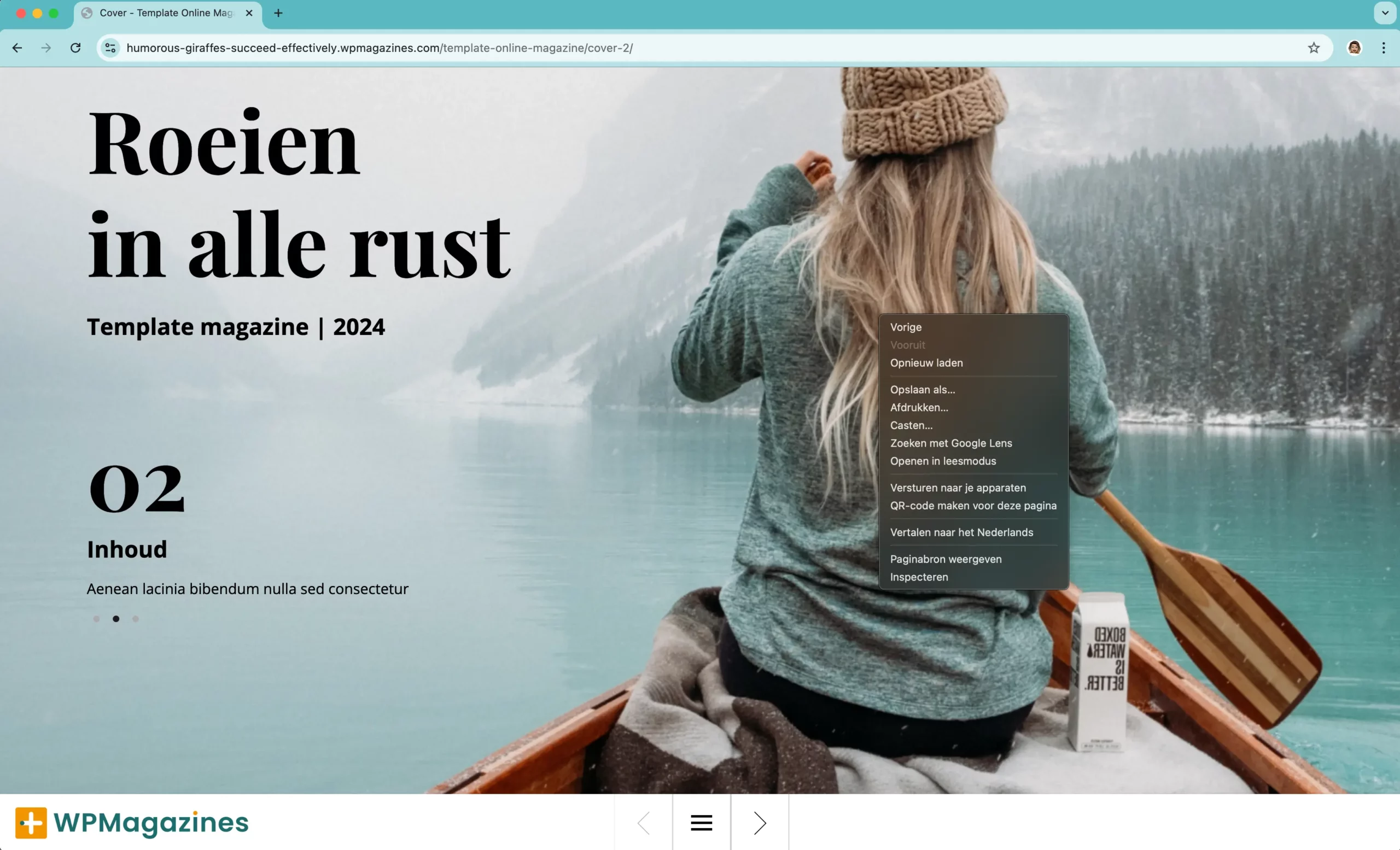
View your magazine via Google Chrome and right-click anywhere on the page you would like to test.
From the dropdown list choose "Inspecteren" or "Inspect". Chrome will then open the inspector toolbar.
2
Click on the image to enlarge
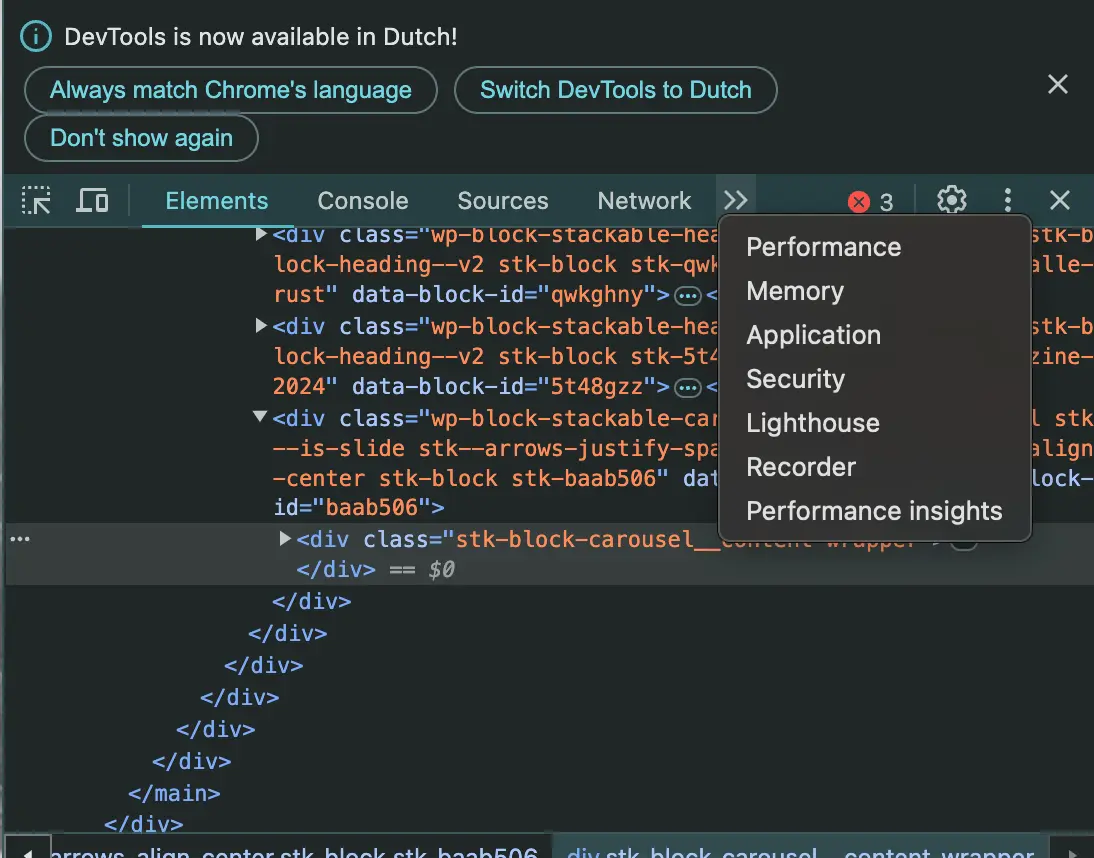
If you do not see Lighthouse as an option in the toolbar, click on the arrows, from the dropdown choose "Lighthouse".
3
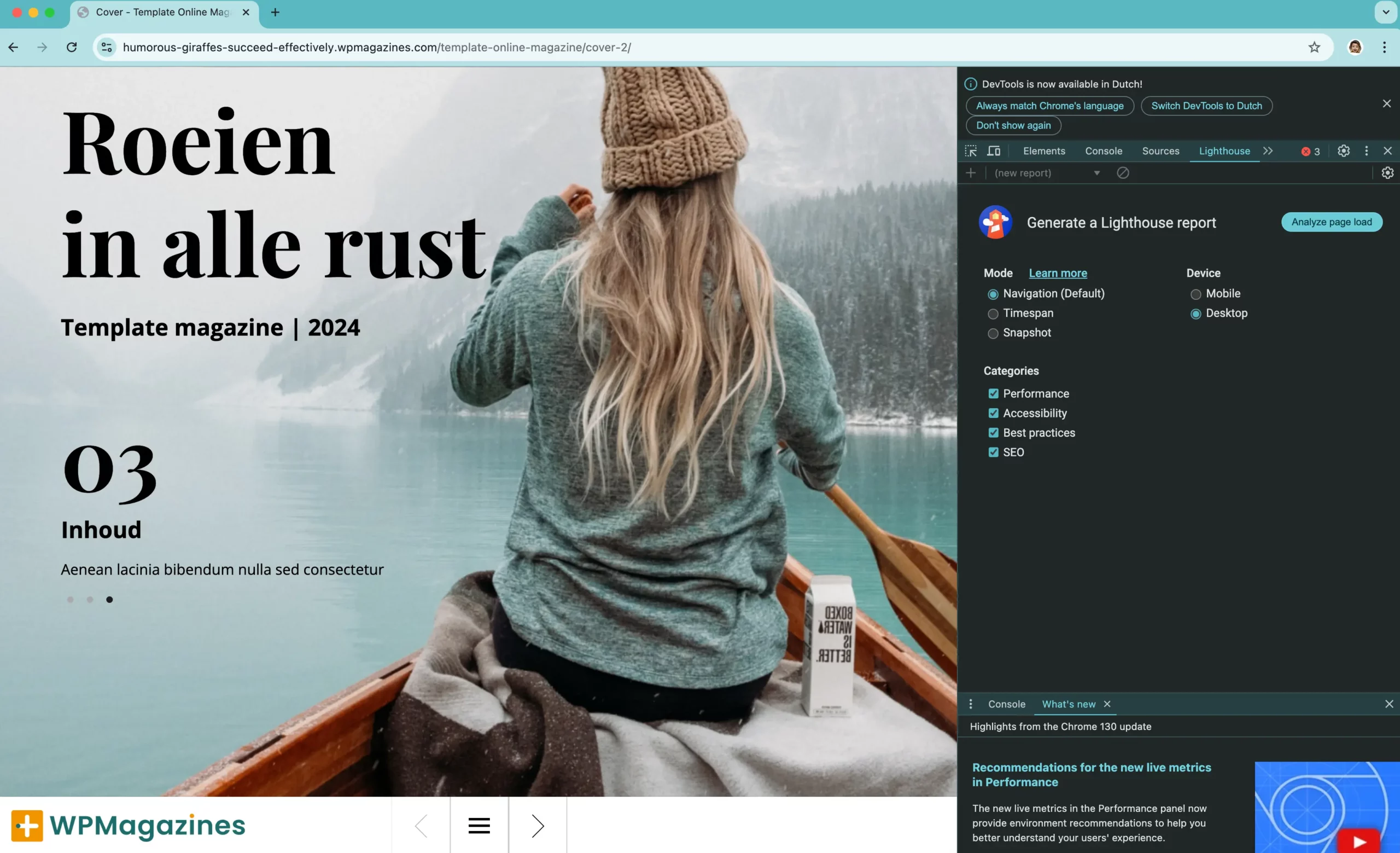
Click on the image to enlarge
This will open the Lighthouse toolbar. Choose which device you would like to test and click "Analyze page load".
When Lighthouse is finished analyzing the page, the results will be shown.
4
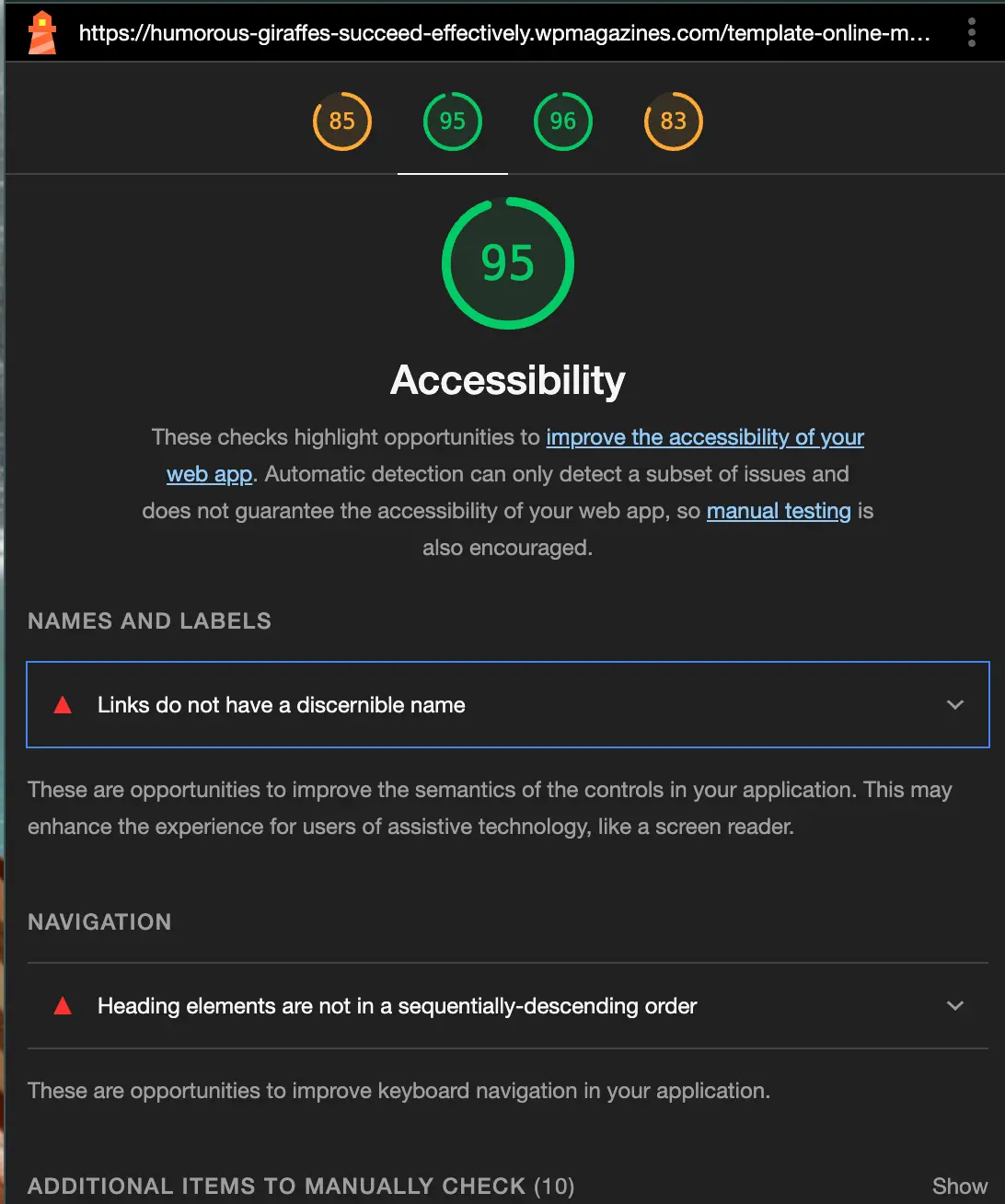
Click on the image to enlarge
Lighthouse analyses and scores 4 categories, the results of all categories will be shown. For accessibility click on "Accessibility".
Here you will be shown a list of issues and tips for improvement.
Wave - Web accessibility evaluation tool
WAVE^(®) is a suite of evaluation tools that helps authors make their web content more accessible to individuals with disabilities. WAVE can identify many accessibility and Web Content Accessibility Guideline (WCAG) errors, but also facilitates human evaluation of web content.*****
There are 2 ways to use WAVE:
- through the website: https://wave.webaim.org/
- through a browser extension
Below we will guide you through the browser extension.
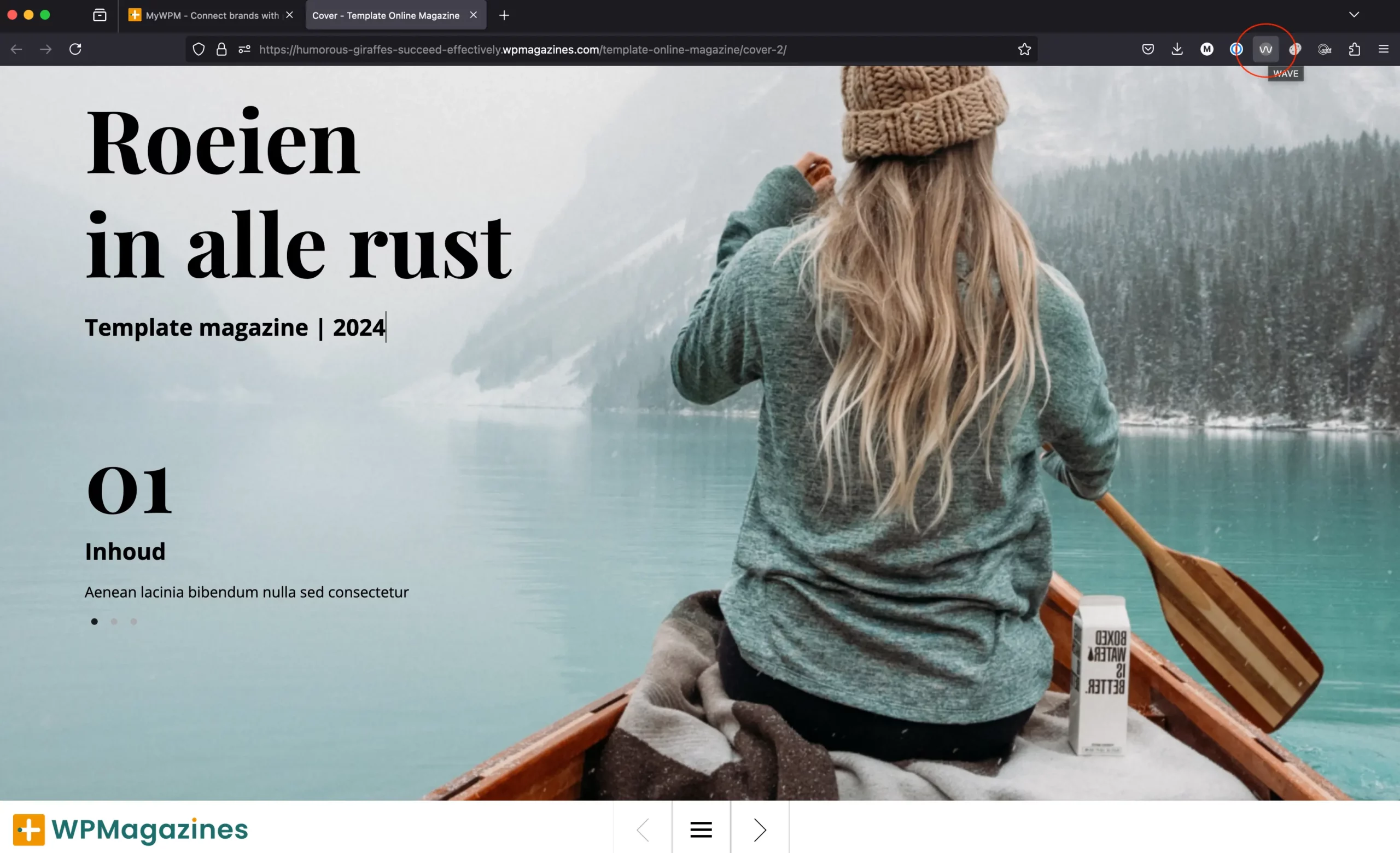
Click on the image to enlarge
In this example the WAVE extension is used with Firefox, but you can also add the extension to Chrome and Microsoft Edge.
Head to the page you would like to analyze. Then turn on the extension by clicking on the icon in the upper-right corner.
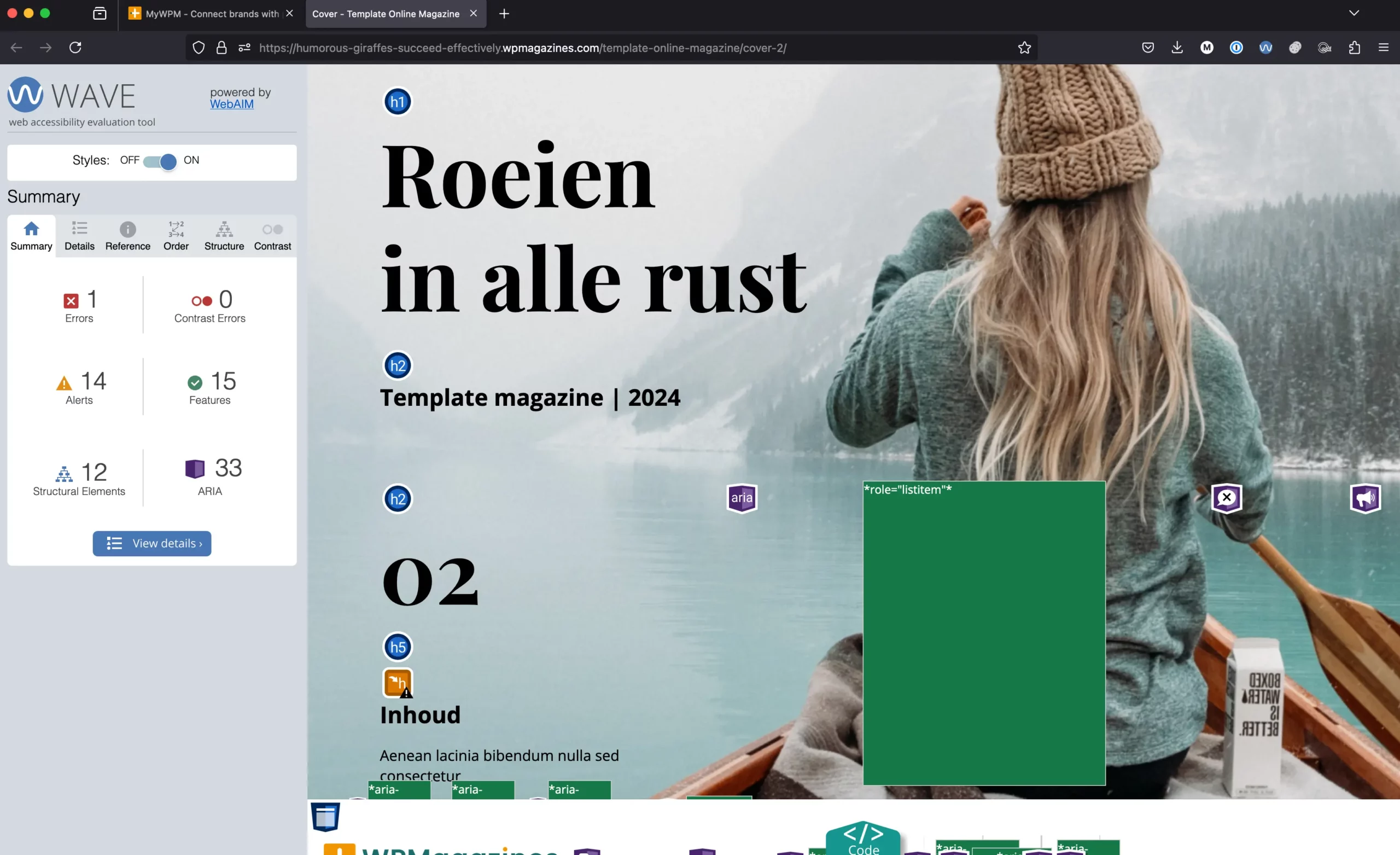
Click on the image to enlarge
Now that WAVE is activated on the page you will see a toolbar on the left with the result.
Now that WAVE is activated on the page you will see a toolbar on the left with the result.
Click on "Details" to view a list of possible issues.
* source: https://en.wikipedia.org/wiki/Firefox.
** source: https://firefox-source-docs.mozilla.org/devtools-user/accessibility_inspector/
*** source: https://developer.mozilla.org/en-US/docs/Web/Accessibility/Understanding_WCAG
**** source: https://developer.chrome.com/docs/lighthouse/overview/
***** source: https://wave.webaim.org/